
Most store owners focus on getting more traffic, but more visitors won’t help if your landing pages and cart setup are confusing. You can increase your WooCommerce revenue by fixing the ‘leaky’ parts of your checkout process where many of shoppers typically drop off.
The good news is that you can build a professional path that guides visitors from their first glance to a final purchase in just a few hours.
In this guide, I’ll show you exactly how to set up a beginner-friendly WooCommerce funnel without coding or complex enterprise tools.
🗺️ Here’s What You’re Building
Before diving in, here’s the complete funnel you’ll have by the end of this guide — so you know exactly where each step is taking you:
A landing page that captures attention and focuses visitors on one product or offer
A lead capture form that collects emails from visitors who aren’t ready to buy yet
Upsell and cross-sell offers that increase how much each customer spends
An optimized checkout that removes friction and builds trust at the final step
A post-purchase email sequence that turns one-time buyers into repeat customers
What Is a WooCommerce Sales Funnel?
A WooCommerce sales funnel is a simple, step-by-step path that turns casual visitors into paying customers — and then into repeat buyers.
Instead of hoping someone lands on your store and buys right away, a funnel guides them from “just browsing” to “take my money.”
Think of it like shopping at a supermarket. You walk in and notice products on display (awareness), compare brands and prices (interest), and then head to the checkout (decision). If the experience is good, you come back the following week (retention).
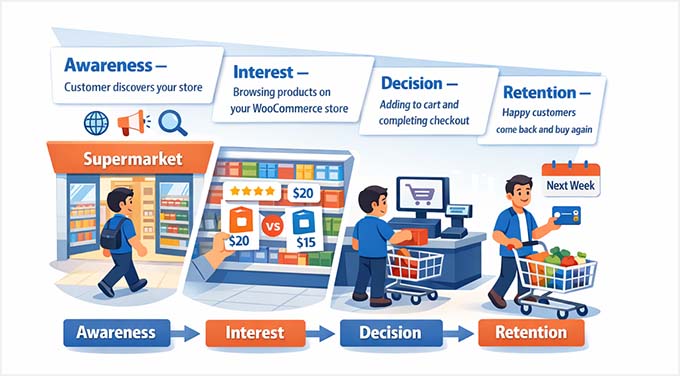
Online stores work the same way.
And I’ve seen that when store owners understand these stages clearly, their conversions improve almost immediately. That’s because they take the guesswork out of sales — and start guiding.
The 4 Stages of a WooCommerce Sales Funnel
To make this simple, I have broken down a WooCommerce sales funnel into four core stages:
Awareness — How Visitors Discover Your Store: This is where people first find you. It could be through Google search, social media, ads, or a blog post.
Interest / Consideration — Capture Attention & Build Desire: Now they’re browsing your products. They’re comparing options, reading descriptions, checking reviews, and deciding if your store feels trustworthy.
Decision / Purchase — Convert Browsers into Buyers: This is the checkout moment. Your goal is to remove friction, build confidence, and make buying easy.
Retention / Loyalty — Turn first-time buyers into Repeat Customers: After the purchase, you follow up. Email marketing, discounts, loyalty rewards, and great support help bring them back.
💡 Pro Tip: A sales funnel only works if people are actually coming to your store. That’s why the first step is making sure your WooCommerce site gets traffic.
Improving your SEO is key — optimizing product pages, meta titles, and site structure will help more visitors find your store. To get started, I recommend checking out our guide on WooCommerce SEO.
Now that you understand these four stages, let’s look at how to actually build them.
The steps in this tutorial will map perfectly to this journey, helping you turn theory into a working funnel.
Set Up Your Store for Funnel Success: Checklist for Beginners
Before building your funnel, you must have the right foundation in place.
Here is a checklist of the essentials you need to get started:
Self-hosted WordPress – Your store should run on a self-hosted WordPress site, not WordPress.com. This gives you full control over your store, plugins, and customization options.
WooCommerce Installed – WooCommerce is the backbone of your online store. It handles your products, inventory, and checkout process. Think of it as the engine that powers your store — without it, there’s no way to sell anything online.
Payment Gateway – You need a way to accept payments from your customers. Stripe and PayPal are the most popular options, and using one (or both) makes sure your buyers can pay easily and securely.
Funnel or Page Builder plugin – This is what lets you create landing pages, product pages, and the different steps of your sales funnel. I recommend tools like SeedProd and FunnelKit because they make it easy to design pages that guide visitors toward buying.
Email Marketing Service – A key part of any funnel is following up with potential buyers. An email marketing service lets you capture leads, send promotions, and nurture visitors who didn’t buy the first time.
If you’re overwhelmed — don’t worry, I’ve got you covered. Follow our guide on WooCommerce Made Simple to easily set up your store.
💡 Pro Tip: A slow store can lose visitors before they even see your products, which can hurt your funnel from the start.
At WPBeginner, our team has tested dozens of hosts to find options that give your store better speed, a free SSL certificate, and even a free domain.
Check out our list of the fastest WordPress hosting providers to set your store up for success.
Choosing the Right Funnel Plugin
Once your store is successfully set up and ready to sell, the next step is choosing the right tools to build your funnel.
I’ve tested several options, and here’s a breakdown to help you pick the plugin that fits your store, your goals, and your skill level:
⭐My Recommendation: For beginners, I usually suggest FunnelKit and SeedProd. Both are easy to use, full-featured, and well-supported. This makes it easy to create a complete WooCommerce funnel without coding.
Later, you can add FunnelKit Automations and OptinMonster to capture leads and send automated emails that keep your funnel active.
Step 1: Create a High-Converting Landing Page
The first step in your WooCommerce sales funnel is creating a landing page that actually converts.
A landing page is more than just a product page. It’s a focused space designed to guide visitors toward one specific action, like making a purchase.
I’ve seen many beginners skip this step and lose potential customers because their homepage is too cluttered or confusing.
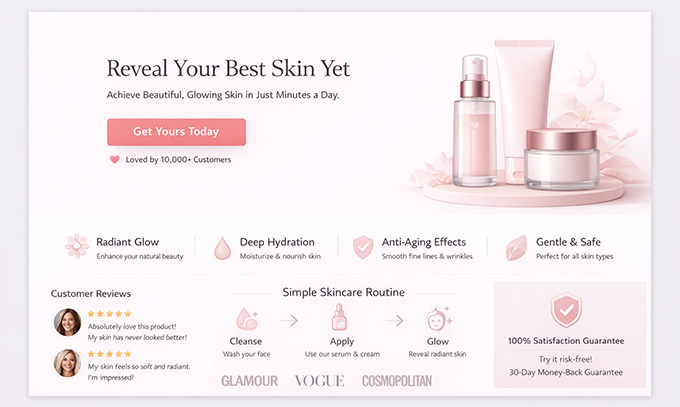
A well-designed landing page removes distractions, clearly communicates your product’s value, and sets the stage for the next steps in your funnel.
What Makes a Landing Page Convert?
To get the most out of your funnel, each landing page should include key elements that guide visitors naturally toward buying.
Here’s why each one is important:
Headline with Product Benefit: Your headline is the first thing visitors see. Make sure it clearly answers: “What’s in it for me?” If it doesn’t grab attention, people will leave immediately.
Product Image or Product Video: Showing your product in action or highlighting it in a high-quality image helps visitors quickly understand what they’re buying and increases trust. Videos, especially, can boost conversions by giving a realistic sense of the product in use.
Social Proof (Reviews and Ratings): Visitors trust other customers more than marketing copy. Displaying testimonials, reviews, or star ratings builds credibility and reassures buyers that they’re making a safe choice.
Benefit-Focused Description: Focus on what the product does for the customer, not just its features. Clear benefits answer the question, “Why should I buy this?” and help motivate the visitor to take action.
Single, Prominent CTA Button: One clear call-to-action removes confusion and makes it obvious what the next step is. Multiple buttons or unclear CTAs can distract visitors and lower conversions.
For this, I recommend SeedProd. It’s the best WordPress page builder for conversion-focused landing pages because it’s drag-and-drop, beginner-friendly, and fully compatible with WooCommerce.
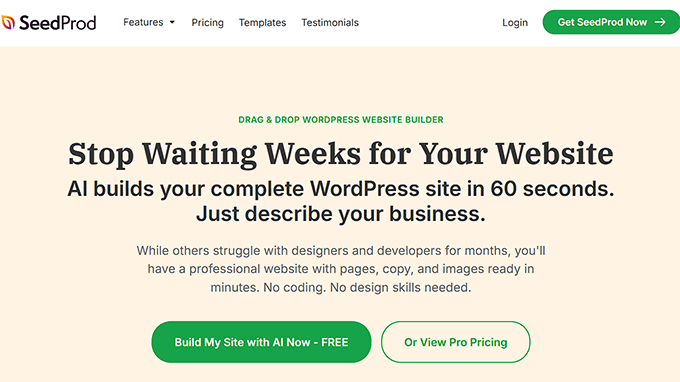
Several of our partner brands have used SeedProd to build landing pages for new product launches, email campaigns, and special promotions — and they’ve actually seen measurable boosts in conversion rates.
SeedProd comes with:
Pre-built templates optimized for conversions – You don’t need to design from scratch.
WooCommerce blocks (Pro version) – Display product grids, featured products, or bestsellers directly on your landing page.
Countdown timers and lead capture forms – Perfect for promotions and lead generation.
Email integration – Automatically connect with your email marketing service to follow up with leads.
Live Preview – Lets you preview your landing page on both desktop and mobile, so you know exactly how it will look to visitors.
You can also experiment with its AI website builder to quickly generate layout ideas or product sections.
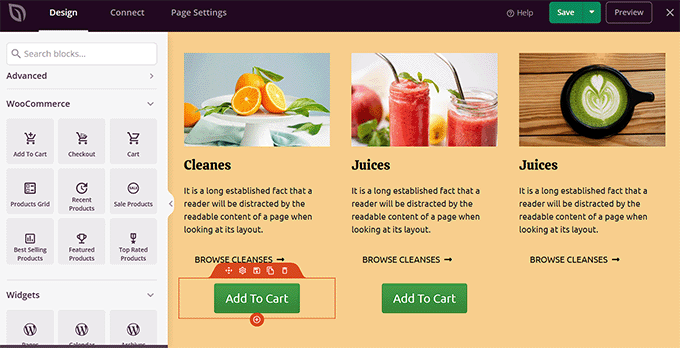
For a full step-by-step walkthrough, check out our tutorial on creating a landing page in WordPress.
Step 2: Set Up Lead Capture Optin Forms
Once your landing page is ready, you need to capture leads. This allows you to engage visitors who aren’t ready to buy yet, so you can follow up later and guide them toward a purchase.
To encourage sign-ups, you need a lead magnet — something valuable you give visitors in exchange for their email address.
Popular options include:
First-purchase discount – Encourage immediate action while collecting emails.
Free shipping – A simple incentive that can push hesitant buyers to convert.
Downloadable guide – A PDF, checklist, or tutorial related to your products.
Members-only sale – Exclusive access makes people feel special and motivates sign-ups.
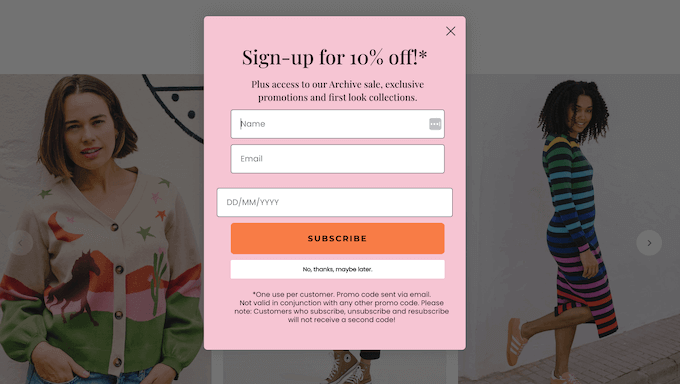
To capture these leads, I recommend OptinMonster, which is my go-to tool for creating high-converting optins.
Many of our partner brands use it to promote products, grow their email lists, and recover visitors who were about to leave — and it consistently helps improve sales.
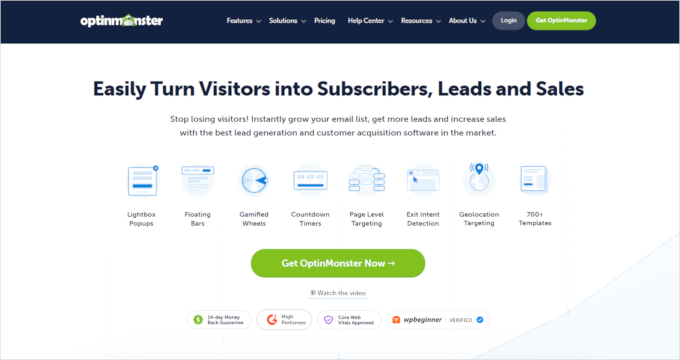
Its Exit-Intent technology, flexible templates, and drag-and-drop editor make it easy to create forms that actually work, even if you’re new to lead generation.
You can create popups, floating bars, slide-ins, or inline forms, and integrate them with your email marketing service to deliver lead magnets via email, direct download, or both.
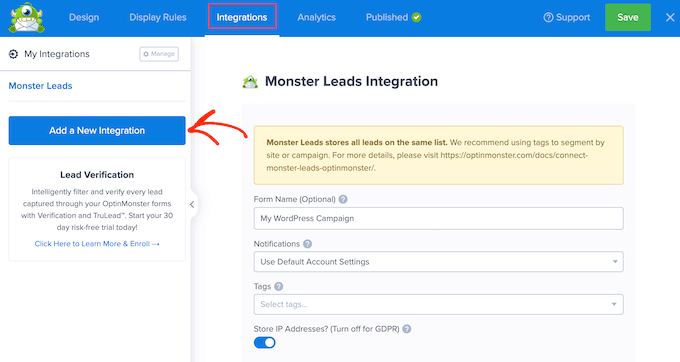
First, you’ll need to sign up for an OptinMonster account (Growth Plan) and connect it to WooCommerce. Then, choose your campaign type and select a template that fits your lead magnet.
From there, you can customize the text, images, buttons, and success message, then publish your optin form on your landing page.
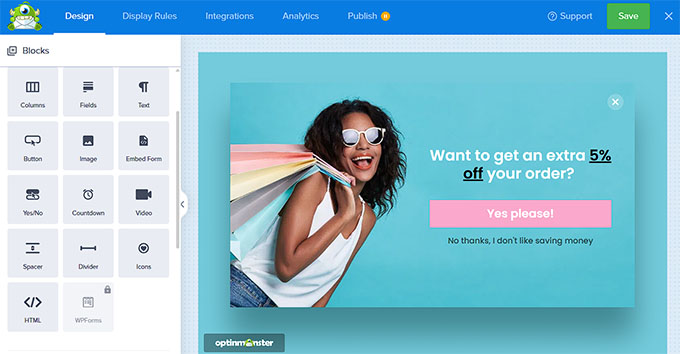
For detailed instructions, see our tutorial on creating a lead magnet optin form with WordPress.
What Happens After Someone Opts In?
Capturing an email is only half the job. What you do with that email in the next 48 hours has a bigger impact on conversions than the signup form itself.
Here’s a simple three-email welcome sequence you can set up with FunnelKit Automations to move new subscribers toward their first purchase:
Email 1 — Immediate (0 minutes): Deliver the lead magnet. Keep it short. Include the discount code, download link, or access details they signed up for. End with one sentence introducing your store.
Email 2 — Day 2: Share your story or your product’s origin. This builds trust and makes your brand memorable before you ask for a sale. Include a soft CTA like “Browse our bestsellers.”
Email 3 — Day 4: Make a direct offer. Remind them of their discount if they haven’t used it, highlight your most popular product, and include a clear “Shop Now” button. Create light urgency by noting the offer expires soon.
This sequence works because it delivers value first, builds familiarity second, and only asks for a purchase once trust is established.
For details, see our guide on how to set up WordPress email marketing automation.
Step 3: Add Upsells & Downsells
After capturing leads, you need to think about increasing the value of each sale.
Upsells and cross-sells turn interested buyers into higher-value customers by offering relevant products that naturally complement their purchase.
Which Products Should You Upsell — and at What Price?
Not every product is a good upsell candidate, and offering the wrong one at the wrong price can actually hurt conversions.
Here’s how to choose wisely:
Price the upsell at 25–50% of the original product. If someone is buying a $40 item, a $15–$20 upsell feels reasonable. A $60 upsell feels like a trick.
Choose products that enhance the original purchase. The best upsells make the main product work better or last longer, like a carrying case for a camera, extra blades for a razor, a recipe book for a kitchen tool.
Limit offers to one or two at a time. More than two recommendations creates decision fatigue and often results in the customer choosing none.
Use a downsell if they decline. If a customer skips your upsell, a cheaper alternative — rather than nothing — recovers some of that lost revenue. For example, if they pass on a $25 premium bundle, offer a $10 single add-on instead.
Pre-Purchase vs. Post-Purchase: When to Show the Offer
Timing matters as much as the offer itself. The two main moments to present upsells each have different strengths:
Post-purchase upsells tend to convert better because the customer has already committed to buying from you, so the psychological barrier is gone.
Once you know what to offer and when, the next step is setting it up without touching any code. For this, I recommend the Merchant plugin by aThemes.
It’s the best WooCommerce upsell and cross-sell plugin because it gives you full control over where and how recommendations appear — on product pages, in the cart, or at checkout.
Plus, you can easily add incentives like discounts or free shipping to encourage more add-ons.
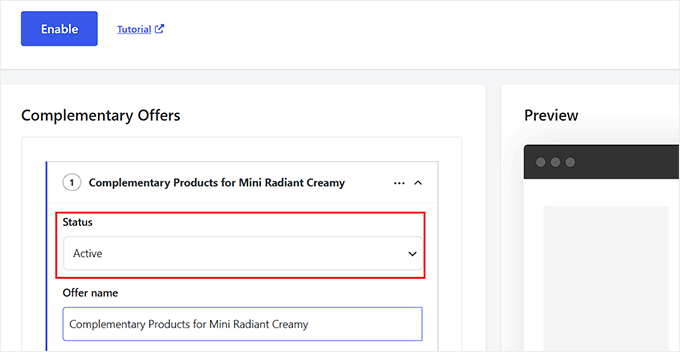
Our team has covered this in detail in our guide on showing product recommendations in WooCommerce.
Step 4: Optimize Checkout for Conversions
Next, you must make the checkout as smooth as possible. Even a great WooCommerce funnel loses sales if the checkout is slow or confusing. Optimizing this stage turns more browsers into buyers by removing friction at the final step.
Here are some tips to improve your checkout experience:
1. Enable Guest Checkout
Allowing guest checkout reduces friction for first-time shoppers who do not want to create an account.
Fortunately, it’s easy to set up. In your WordPress dashboard, go to WooCommerce » Settings » Accounts & Privacy and check the ‘Enable guest checkout’ box.
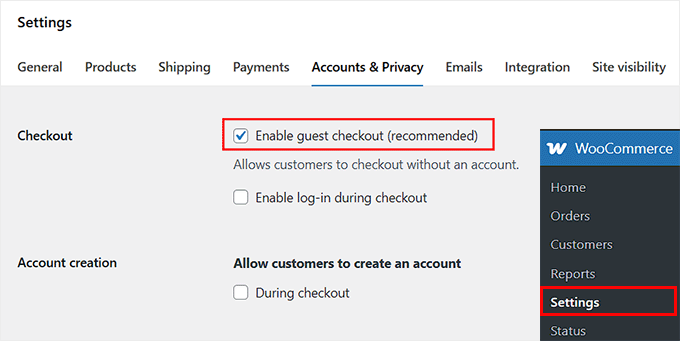
This small change can make a big difference in your conversions.
For a detailed walkthrough, see our guide on how to enable guest checkout in WooCommerce.
📍Note: If you sell recurring subscriptions or memberships using plugins like WooCommerce Subscriptions, you’ll still need to require account creation.
You can easily enable the account creation settings on this exact same Accounts & Privacy page.
2. Add a Progress Indicator
A progress indicator helps shoppers see where they are in the checkout process, which reduces uncertainty and keeps them moving toward completing their order.
It’s especially useful for multi-step checkouts, where customers might otherwise feel unsure how many steps are left.
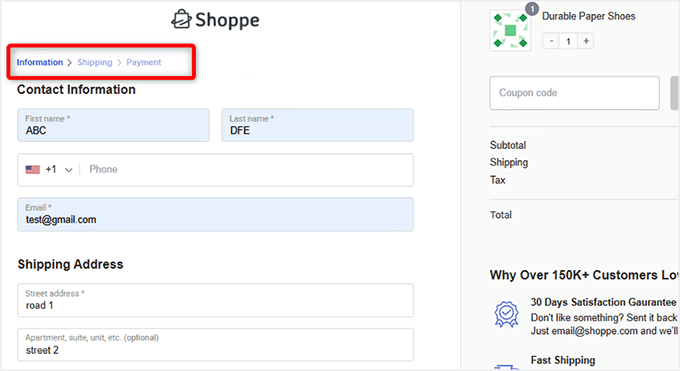
With FunnelKit Funnel Builder, you can easily add visual breadcrumbs or step indicators to your checkout pages. The plugin comes with pre-made checkout templates that include progress indicators, so you don’t need to design anything from scratch.
You can also customize colors, fonts, and layout to match your store’s branding, making sure the checkout feels professional and trustworthy.
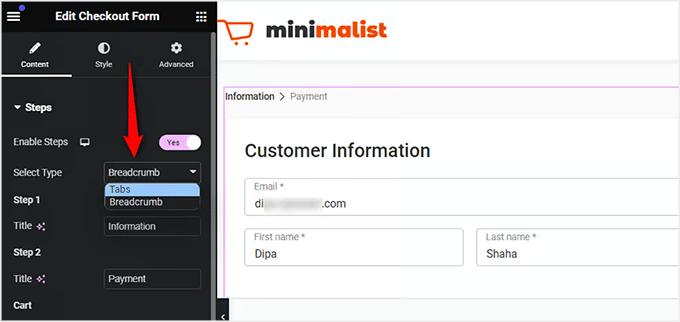
To get started, take a look at our tutorial on customizing the WooCommerce checkout page.
3. Display Trust Badges
Trust badges reassure customers that their payment data is secure. This small visual cue can make a big difference, especially for first-time buyers who might be hesitant to enter their details.
I recommend using the Merchant plugin to easily display SSL certificates, trust badges, or money-back guarantees anywhere on your cart or checkout pages without using code.
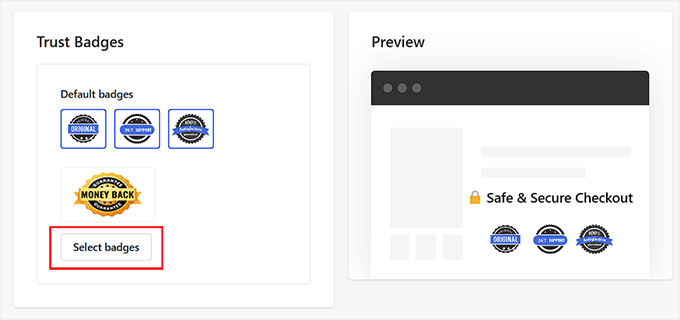
If you’re using FunnelKit, many of the pre-built checkout templates already come with trust badges included. This means you can have a professional, conversion-ready checkout page without any extra setup.
For step-by-step instructions, take a look at our tutorial on how to add trust badges with WooCommerce.
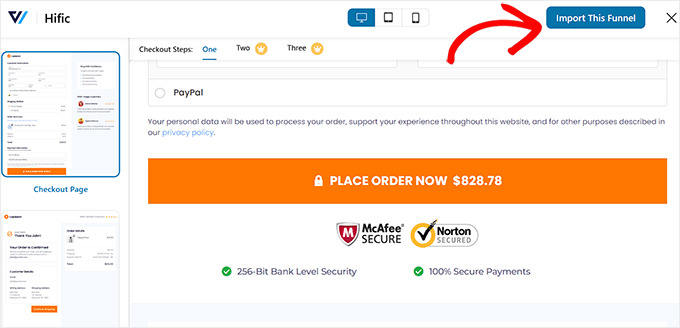
4. Minimize Form Fields
Long and complicated checkout forms are one of the biggest reasons shoppers abandon their carts. The more information you ask for, the more time it takes — and the more chances buyers have to second-guess their purchase.
I always recommend keeping your checkout fields limited to what’s absolutely necessary.
For most WooCommerce stores, you typically only need:
First and last name
Email address (for order confirmation and follow-ups)
Shipping address (if selling physical products)
Billing address (if different from shipping)
Payment details
If you’re selling digital products, you can often remove shipping fields entirely, which makes checkout even faster.
The Merchant plugin makes this much easier by offering a fast, mobile-optimized one-page checkout template for WooCommerce.
Instead of spreading fields across multiple steps, it keeps everything clean and streamlined on a single page.
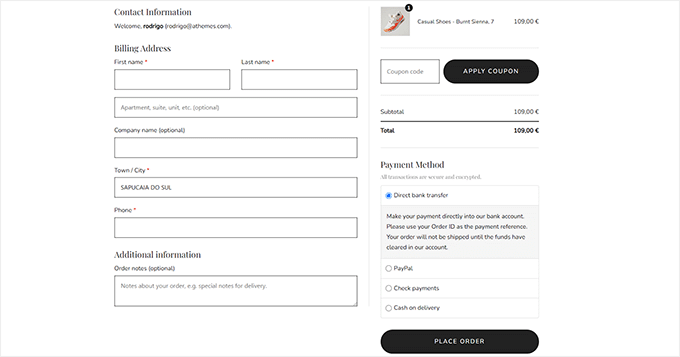
Merchant also includes a visual builder, so you can fully customize your checkout layout without code. You can adjust the structure and control exactly which form fields appear.
5. Show Cart Summary
A clear cart summary helps shoppers review their order without leaving the product page. When customers can easily review what they’re buying — including product details, quantities, pricing, and totals — they’re less likely to hesitate or abandon their cart.
I suggest using a sliding side cart to keep customers engaged while showing their quantities and totals instantly.
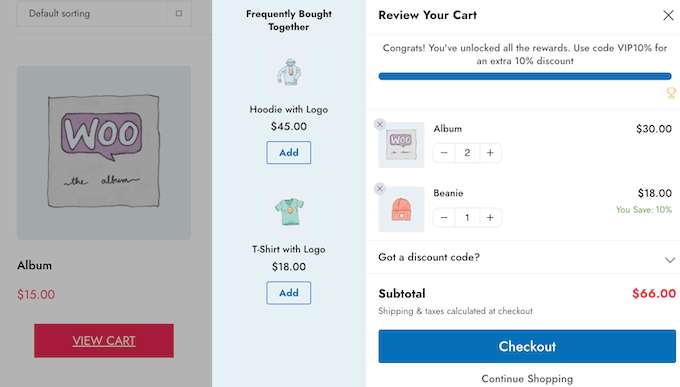
The FunnelKit Cart plugin makes this easy by offering a customizable slide-in cart that appears when customers add a product.
📍Note: Make sure to go to WooCommerce » Settings » Products and uncheck “Redirect to the cart page after successful addition” so your slide-in cart works perfectly.
It creates a faster, more modern shopping experience and keeps buyers engaged. For step-by-step instructions, follow our tutorial on how to add a sliding side cart in WooCommerce.
6. Offer Multiple Payment Options
After optimizing your checkout layout and showing a clear cart summary, the next step is making it easy for customers to pay.
Providing multiple payment methods ensures shoppers can choose the option they trust, which reduces abandoned carts and increases conversions.
For this, I suggest using the FunnelKit Payment Gateway for Stripe to accept credit cards and popular digital wallets directly on your WooCommerce checkout.
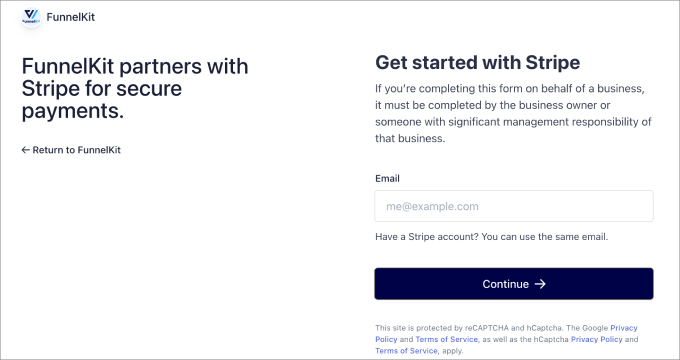
For additional trusted options, enable PayPal or Authorize.Net. Familiar payment brands help first-time buyers feel confident completing their purchase.
Take a look at our guide to WordPress payment processing for more information on payment providers, setup, and best practices.
7. Offer Coupons as Incentives
Coupons encourage shoppers to finish their purchase. Offering a discount can tip hesitant visitors toward converting and can also increase the average order value when used strategically.
I recommend using Advanced Coupons to create BOGO deals or product-specific discounts that increase your average order value.
Here are some types of coupons you can try:
Percentage off – A classic discount, like 10% off the total order.
Fixed amount off – Subtract a set dollar amount from the order total.
Free shipping – Remove shipping costs to make checkout more appealing.
Buy One, Get One (BOGO) – Encourage shoppers to add more products to their cart.
Product-specific discounts – Offer deals on select items to promote key products.
With Advanced Coupons, you can easily create these coupons and control their rules, limits, and expiration dates.

For a step-by-step walkthrough on setting up all these coupon types, check out our tutorial on creating smart WooCommerce coupons.
Optional Advanced Tweaks to Optimize the WooCommerce Checkout
Once your basic checkout is optimized, there are a few advanced tweaks that can give your funnel an extra boost:
Add Order Bumps – Order bumps are small, optional offers presented at checkout to encourage customers to add a complementary product.
Reduce Friction with Chatbots and FAQs – Answering customer questions in real-time can prevent abandoned carts. A chatbot or a quick FAQ section on your checkout page gives shoppers the confidence to complete their purchase.
Optimize the Thank-You Page – The thank-you page isn’t just a confirmation, it’s another chance to engage customers. With SeedProd, you can design visually appealing thank-you pages that include upsells, cross-sells, or social sharing prompts to encourage repeat purchases.
For a complete guide on all these techniques, check out our ultimate guide to speeding up WooCommerce checkout.
Step 5: Build a Post-Purchase Email Sequence
After capturing a sale, your funnel isn’t done — retention is just as important as acquisition. I’ve seen many online store owners focus only on the first purchase, but turning buyers into repeat customers is where your revenue really grows.
This is also where loyalty programs, referrals, and post-purchase follow-ups come in.
One of the most effective ways to stay engaged with customers is through post-purchase emails. These emails go straight to your buyer’s inbox while their experience is still fresh, giving you a chance to:
Thank them for their order
Ask for feedback via a short survey
Offer a small incentive, like a coupon, for leaving a review or completing the survey
To make this effortless, I recommend FunnelKit Automations, the best WooCommerce automation plugin I’ve tested.
It comes with pre-built Post-Purchase Sequence workflows that can automatically send thank-you emails, surveys, or follow-ups after an order.
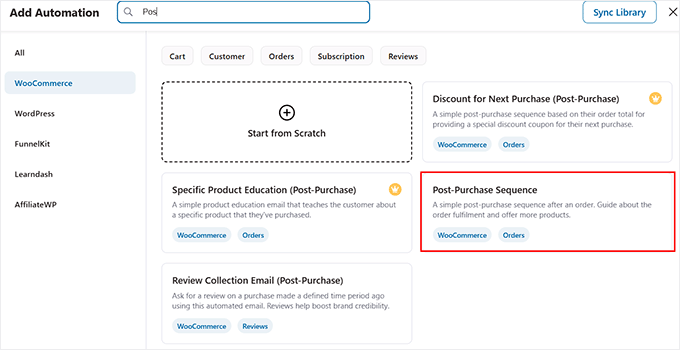
With FunnelKit, you can automatically trigger emails after purchase, customize the email content to include surveys, discounts, or product recommendations, and track engagement over time.
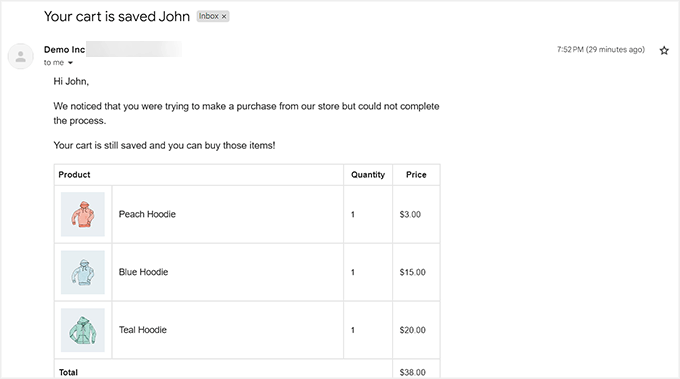
This plugin also handles abandoned cart recovery, letting you automatically send gentle reminders, social-proof follow-ups, and even last-chance offers.
When to Send Abandoned Cart Emails (Timing That Works)
The timing of your abandoned cart sequence has a significant impact on recovery rates. Send too early and you feel pushy; wait too long and they’ve already bought from a competitor.
Here’s a three-email sequence that consistently performs well:
Email 1 — 1 hour after abandonment: A gentle, friendly reminder with no discount. Simply show them what they left behind and make it easy to return. Many people abandon carts due to distraction, not hesitation, so this email catches them.
Email 2 — 24 hours after abandonment: Add a little social proof. Include a customer review of the product they abandoned, or mention how many people have bought it recently. This addresses hesitation without using discounts.
Email 3 — 72 hours after abandonment: Make your strongest offer. This is where you introduce a time-limited discount or free shipping incentive. Keep the urgency genuine, so a coupon that expires in 24 hours should actually expire.
To set this up on your site, take a look at our tutorial on how to set up WooCommerce abandoned cart emails.
A Visual Summary of the WooCommerce Sales Funnel
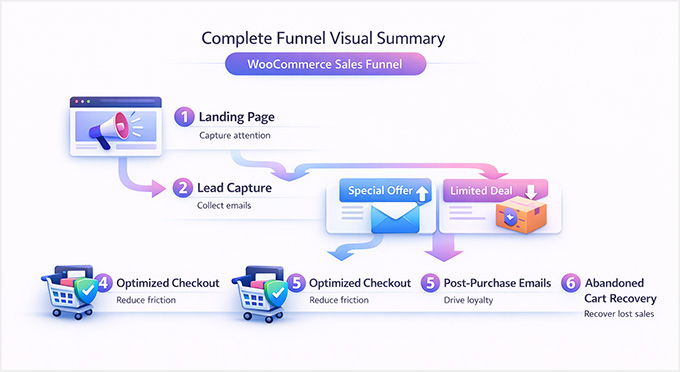
You’ve built each step of your WooCommerce sales funnel, from attracting visitors to turning them into repeat customers.
Here’s a quick visual overview that ties all the pieces together, so you can see how every step flows and contributes to your store’s success.
Measure Your WooCommerce Funnel Performance
After launching your funnel, you must track its performance to see what is working.
Monitoring these key metrics helps you identify where visitors might be dropping off so you can improve your conversion rates:
📍 Note on benchmarks: The figures in the table above are general starting points, not universal targets.
A 1–4% conversion rate is typical across ecommerce broadly, but your actual healthy range depends heavily on your industry, product price, and traffic source. A luxury goods store converting at 0.8% may be outperforming a budget accessories store converting at 3%.
Use benchmarks to spot problems, not to judge success because what matters most is whether your numbers are improving month over month.
This helps you spot friction points in your funnel, optimize pages, tweak offers, and improve follow-up emails.
For example, a high cart abandonment rate might mean your checkout process is too long, or you need stronger incentives like coupons or upsells.
To easily track these metrics, I recommend using MonsterInsights. It easily integrates with WooCommerce and Google Analytics, letting you see how each step of your funnel is performing in one place.
For a detailed step-by-step setup, check out our guide on WooCommerce conversion tracking.
How to A/B Test Your WooCommerce Funnel
Tracking metrics tells you where your funnel is leaking. A/B testing tells you how to fix it. The idea is simple: show two versions of the same page or element to different visitors and measure which one converts better.
The golden rule of A/B testing is to only test one variable at a time. If you change your headline and your CTA button color simultaneously and conversions improve, then you won’t know which change caused it.
Here’s what to test, in order of impact:
Headline on your landing page — This has the highest potential impact because it affects every visitor. Try two different value propositions and see which one holds attention longer.
CTA button text and color — Small wording changes (“Get My Kit” vs “Shop Now”) can produce surprisingly large differences in click-through rates.
Lead magnet offer — Test a 10% discount against free shipping to see which drives more opt-ins from your specific audience.
Email subject lines — Your abandoned cart and welcome emails live or die by their subject line. Most email platforms let you split-test these automatically.
Upsell placement — Test showing your upsell on the product page versus the post-purchase confirmation page and compare average order values.
Run each test for at least two weeks, or until you have a minimum of 100 conversions per variant — whichever comes later. Ending tests too early based on early data is one of the most common mistakes that leads to false conclusions.
For details on how to do this, see our guide on A/B testing in WordPress.
Post-Launch 30-Day Optimization Plan for WooCommerce Funnel
Now that your WooCommerce sales funnel is live, the real work begins: tracking performance and fine-tuning your funnel for maximum conversions.
This roadmap helps you catch technical issues early and scale the strategies that drive the most revenue:
Week 1: Observe – I always tell store owners to resist the urge to make changes immediately. Watch how visitors move through your funnel, monitor conversion numbers, and run a few test transactions to ensure everything works as expected.
Weeks 2–3: Test — This is when you experiment, but be strategic about it. Start with the changes most likely to move the needle, and only test one thing at a time so you know what caused any change in results. Here are the highest-priority tests to run first:
Swap your landing page headline with an outcome-focused alternative and compare time-on-page
Change your primary CTA button text from something generic (“Buy Now”) to something specific (“Get My [Product Name]”)
Test your abandoned cart email subject line — try a curiosity-based version (“Did you forget something?”) against a direct one (“Your cart is about to expire”)
Try removing one or two checkout fields and measure whether cart completion rates improve
Week 4: Scale – Once you know what’s working, expand it. Increase ad spend, boost email frequency, or apply successful tactics to other products. This is where your funnel starts delivering real, measurable results.
Keep track of every change and outcome. This helps you build a playbook for future funnels and improves long-term performance.
This way, you’re not just launching a funnel—you’re actively optimizing it for growth and higher revenue.
Frequently Asked Questions About WooCommerce Sales Funnel
Here are some of the most frequently asked questions I receive about building and optimizing WooCommerce sales funnels.
Do I need a plugin for a WooCommerce sales funnel?
Not necessarily, but using a plugin is highly recommended for beginners. Plugins like FunnelKit, SeedProd, or Merchant make it much easier to create landing pages, lead capture forms, upsells, and automated emails without coding.
How much does a WooCommerce sales funnel cost?
It can be free or paid, depending on the tools you choose:
How long does it take to build a WooCommerce sales funnel?
You can set up a funnel in about 3–5 hours using pre-made templates and drag-and-drop tools like FunnelKit or SeedProd. More complex funnels with custom automations may take longer.
Can I build a WooCommerce sales funnel without coding?
Yes! All the steps—from landing pages to checkout optimization and automated emails—can be done with click-and-type tools like FunnelKit, Merchant, and SeedProd.
What is the best WooCommerce funnel plugin?
For beginners, FunnelKit is highly recommended. It combines landing pages, checkout optimization, upsells, and automations in one easy-to-use platform.
I hope this article helped you learn how to create a WooCommerce sales funnel. The most successful WooCommerce stores don’t just sell products. Instead, they guide shoppers through a friction-free experience. By setting up a clear funnel today, you are building a system that grows your revenue on autopilot.
You may also want to see our guide on optimizing the customer journey for your WooCommerce store and our expert tips to succeed with your WooCommerce store.
If you liked this article, then please subscribe to our YouTube Channel for WordPress video tutorials. You can also find us on Twitter and Facebook.